CfSC New Onboarding Access Request
All new hires start on Mondays. Typically, the whomever was listed as the manager in the Redcap onboarding information will receive an email from osee@bilh.org that looks like the below the Thursday or Friday before the new hire’s Monday start date so that an email can be created and basic access can be given. The following needs to be requested as part of this step:
A BIDMC email
Signed up for Epic Access/Training
Natus Login Access
R Drive Access
As of writing these instructions, once the manager receives this email it usually takes 12-24 hours for IT to actually validate and enter this person’s information into Workday and the IT system, as noted in bold in the email. Once active (see below), then you can proceed with the next steps.
If you have not received this email by the Friday before a start date you need to email osee@bilh.org and eselinge@bidmc.harvard.edu to “check on its status”.
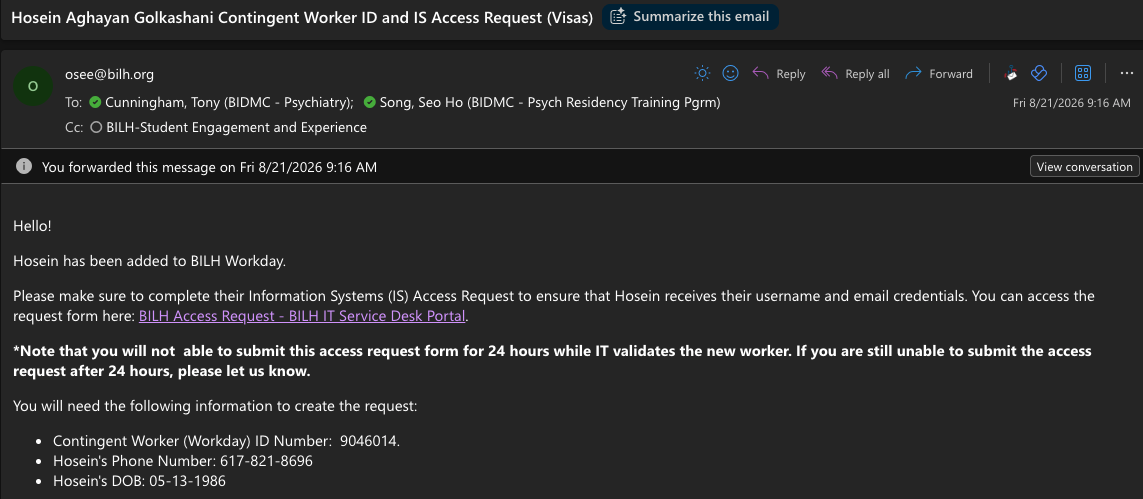
When the manager is ready to submit the access request, they can hit the link provided in the email. To check and see if the employee has been validated and entered into the system, select “Employee / Contingent Worker” under User Type and copy and paste in their Contingent Worker (Workday) ID Number from the email into the blank for BILH Employee ID / Contingent Worker ID.
A new option called Select an AD Account will appear. If their name and information auto-populates in this blank, they are ready to proceed.
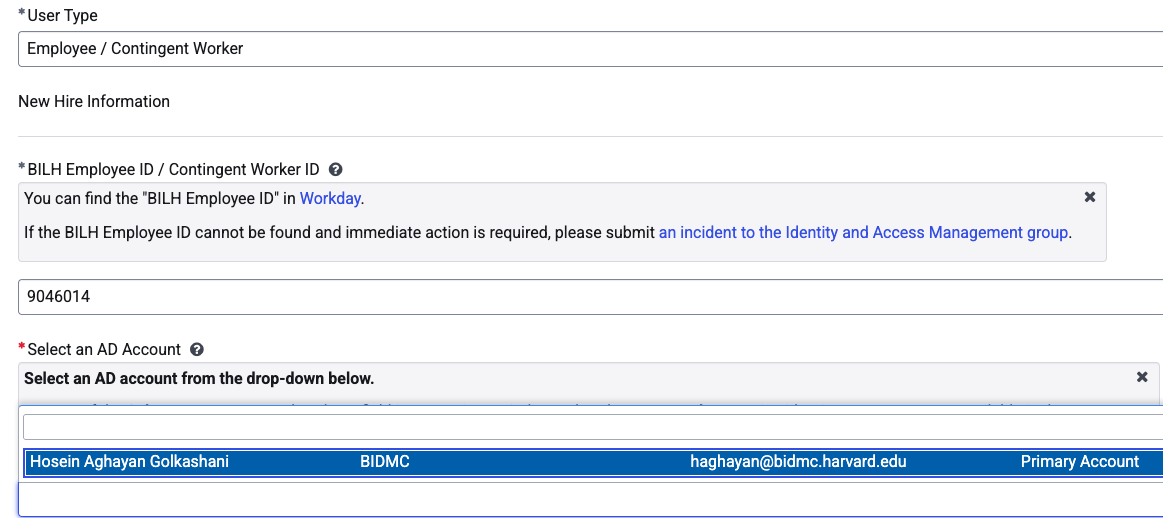
Select their name and several additional blanks will auto-populate. Then go back to the top and add the following information as you scroll down:
Requesting Entity - BIDMC
Request Type - New Hire/New Account Access Request (typically)
User Type - Employee / Contingent Worker
You have already entered their BILH Employee ID and selected their name for AD account. Their name and title should auto-populate
Is this person a traveler? - No
Department - Psychiatry
Manager / Approver - Tony Cunningham or Seo Ho Song
Is this person a permanent transfer from another BILH Institution? - No (typically)
Does this person need a BILH hardware bundle? (Windows Computer) - No
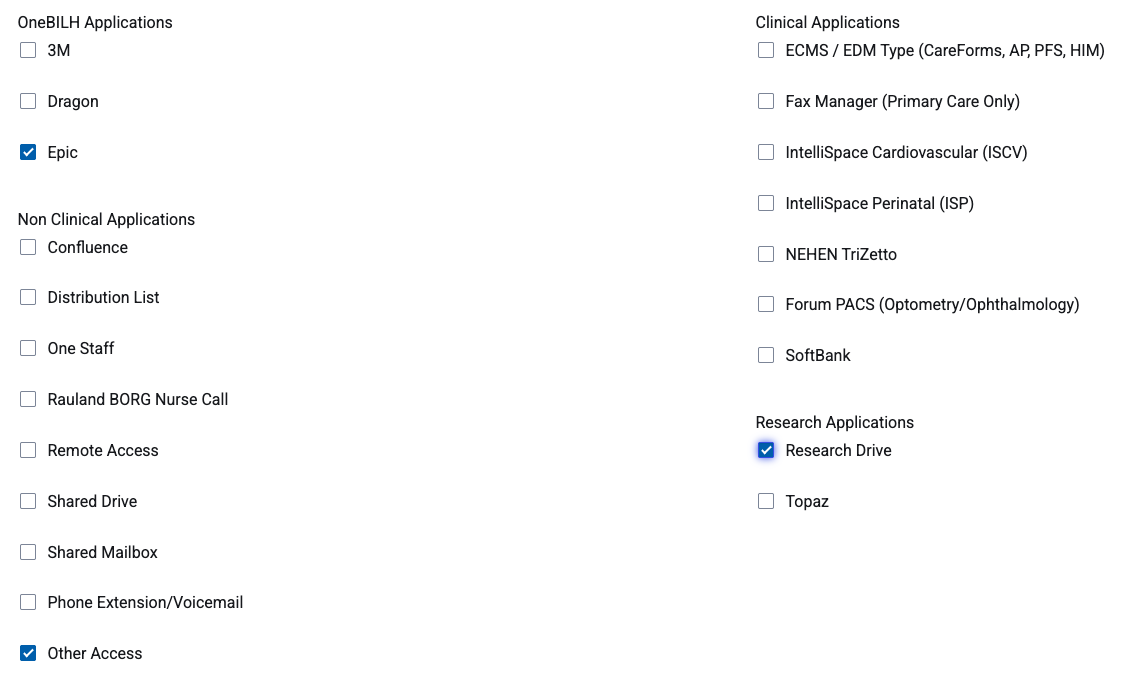
Then check off the following for access additions and hit ‘NEXT’:
Epic
Other Access
Research Drive
AD Network / Email Account / MFA Request Drop Down
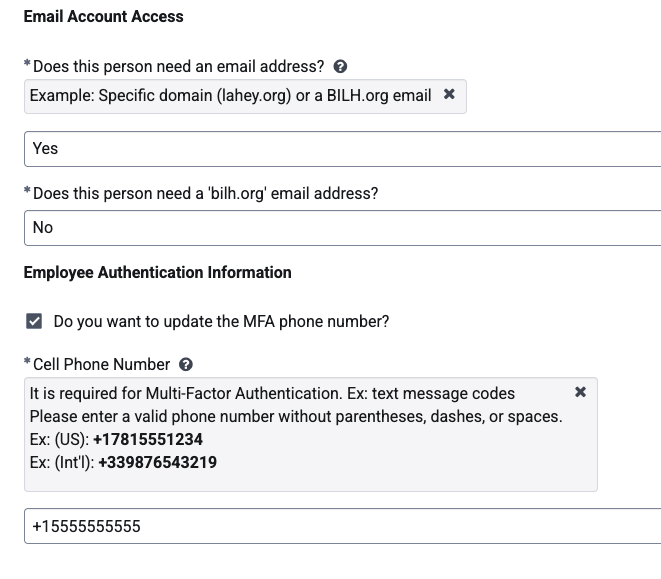
Scroll down to Email Account Access
Does this person need an email address? - Yes
Does this person need a 'bilh.org' email address? - No
Enter their Cell Phone Number (no spaces, dashes, or other markings)
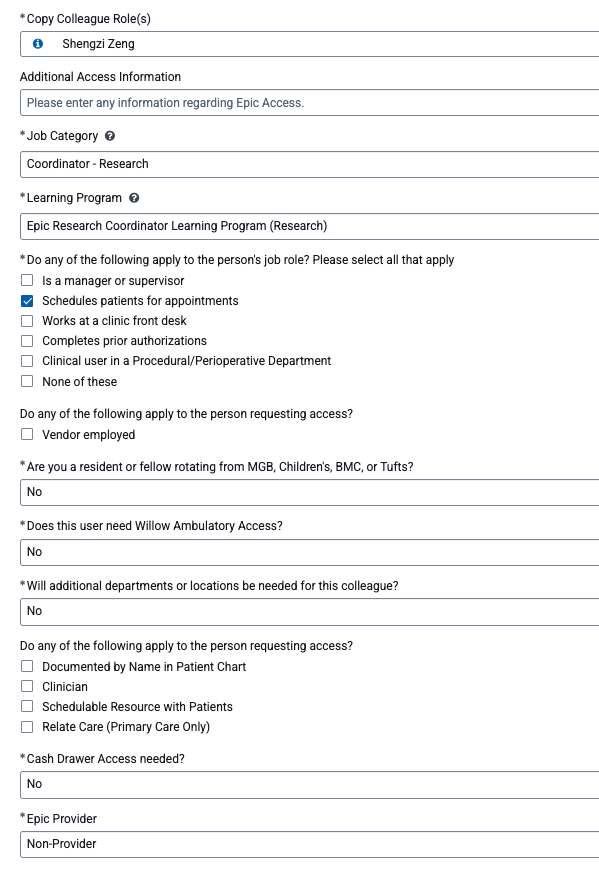
Epic Access Request
Scroll down to Copy Colleague Role(s) and enter a senior lab member with a lot of access (e.g., Shengzi, Jess Mangila, etc.)
Job Category - Coordinator - Research
Learning Program - Epic Research Coordinator Learning Program (Research)
Do any of the following apply to the person's job role? Please select all that apply - Schedules patients for appointments
Are you a resident or fellow rotating from MGB, Children's, BMC, or Tufts? - No
Does this user need Willow Ambulatory Access? - No
Will additional departments or locations be needed for this colleague? - No
Do any of the following apply to the person requesting access? - Clinician (If Michael or Tony)
Cash Drawer Access needed? - No
Epic Provider - Non-Provider
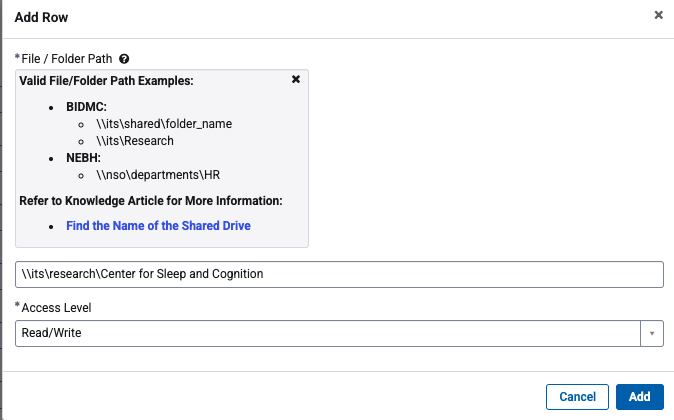
BIDMC Research Drive Access Request
Scroll down to Network File / Folder Access and select ‘Add’
Copy and paste in: \\its\research\Center for Sleep and Cognition
Set Access Level to: Read/Write
Hit ‘Add’
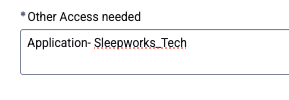
Other Access Request
Scroll to Other Access Needs and copy and paste in: Application- Sleepworks_Tech
Once all of this is completed, hit ‘Next’ and submit the request! It should be completed by the next business day.